


Every component of a modern mouse from the outside in — sensor, switches, encoder, wireless system — what each part does, and which ones actually matter when you buy one.
A modern computer mouse has roughly ten main components: left and right buttons, scroll wheel, side buttons, DPI button, optical sensor, switches, encoder, circuit board, PTFE feet, and the connection system. On a wireless mouse, one more decides everything — the battery.
This article was originally written in 2019 and still described the ball mouse with a rubber ball underneath. That technology disappeared in the mid-2000s, so the content has been rebuilt around the mouse you actually use today. The original photos are kept at the end as a historical reference.

External Parts
These are the components your hand actually touches.
1. Left Click (Primary Button)
The most-pressed button — selecting, opening, dragging. Behind it sits a switch that determines how long the mouse lasts. Switch life is rated in clicks: around 10 million for standard grade, 50–100 million for gaming grade.
2. Right Click (Secondary Button)
Opens context menus. Built identically to the left button, but because it is pressed far less often, it almost always outlives it.
3. Scroll Wheel
Serves three functions at once:
- Rotated to scroll pages
- Pressed as a middle click — usually opening links in a new tab
- Tilted left and right on some models, for horizontal scrolling
Some productivity mice offer a free-spin mode: the wheel disengages from its detent mechanism so it can spin freely for several seconds. Useful for navigating very long documents or spreadsheets.
4. Side Buttons
Usually two buttons under the thumb for forward and back in a browser. They can be remapped through the manufacturer’s software for other tasks — copy, paste, switch applications, or macros.
MMO gaming mice can carry twelve side buttons arranged like a numeric keypad.
5. DPI Button
Changes mouse sensitivity without opening system settings. One press steps DPI up or down to the next preset level.
Some gaming mice include a sniper button — one that lowers DPI only while held, returning to normal when released. Handy for long-range aiming.
Internal Parts
This is where the real work happens.
6. Sensor
The single component that most determines mouse quality. Its job is to photograph the desk surface thousands of times per second, then compare each frame with the previous one to work out direction and distance.
There are two types:
| Sensor Type | Light Source | Strengths | Weaknesses |
|---|---|---|---|
| Optical (LED) | Infrared LED | High precision, consistent, minimal unwanted acceleration | Less reliable on transparent or glossy surfaces |
| Laser | Laser diode | Works on more surfaces, including glass | Sometimes reads too deeply into surface texture, causing unwanted movement |
Interestingly, almost every high-end gaming mouse today uses an optical sensor rather than laser — precisely because consistency matters more than surface flexibility.
7. Switches
The mechanical actuators behind each button. Two technologies exist:
- Mechanical switches — two metal leaves make contact when pressed. Firm feel, audible click. The weakness is that with age the leaves can bounce, producing unintended double clicks.
- Optical switches — an infrared beam is interrupted when the button is pressed. No metal contact, so no bounce problem and a much longer life.
Some high-end mice now offer hot-swappable switches — switches can be pulled and replaced without soldering, significantly extending the useful life of the mouse.
8. Scroll Wheel Encoder
A small sensor translating wheel rotation into digital signals. This component is a frequent weak point: a worn encoder makes pages jump in the opposite direction while scrolling.
9. Circuit Board and Microcontroller
The PCB ties everything together, and the microcontroller on it converts sensor readings into data the computer understands. It also stores DPI settings and macros in onboard memory — which is why some mice keep their settings when moved to another computer.
10. PTFE Feet (Mouse Skates)
Small pads on the underside made from PTFE — the same material used for non-stick pan coatings. They reduce friction against the desk surface.
These wear out and are replaceable. A mouse that feels draggy while the sensor is perfectly fine usually just needs new PTFE feet, not a new mouse.
Connection Systems
11. Wired or Wireless
| Connection | Latency | Strengths | Best For |
|---|---|---|---|
| USB cable | Lowest | No battery, no signal interference | Competitive play, stationary use |
| 2.4 GHz wireless | Matches cable on modern mice | Cable-free, still responsive | Gaming and daily work |
| Bluetooth | Highest | No dongle needed, best battery life | Laptops, travel, multi-device |
Many mice are now tri-mode — supporting all three and switching via a slider underneath.
For wired connections the standard is now USB-C, replacing the once-common micro-USB. Good cables use a flexible braided sheath so they do not tug the mouse backward during movement.
12. Battery (Wireless Only)
Usually a Li-Po cell recharged over USB-C. Some mice still take a replaceable AA battery — heavier, but never fully out of power as long as you carry a spare.
Runtime varies enormously: a work mouse may last months, while a gaming mouse with RGB lighting and a high polling rate might last only days.
Two Numbers Worth Understanding
DPI (Dots Per Inch)
How far the cursor travels for each inch of physical mouse movement. Higher DPI means the cursor covers more distance for smaller hand motions.
Gaming mice now advertise figures above 30,000 DPI. Numbers that high are effectively unusable. Most people sit comfortably between 800 and 1,600 DPI, and many competitive players deliberately choose 400–800 DPI for finer control.
Polling Rate
How often the mouse reports its position to the computer, measured in Hz.
- 125 Hz — once every 8 milliseconds, standard for office mice
- 1,000 Hz — once every millisecond, standard for gaming mice
- 4,000 – 8,000 Hz — high end, and the difference is genuinely hard to perceive
High polling rates load the CPU and drain batteries faster. For most people, 1,000 Hz is more than enough.
What About the Ball Mouse? (Historical Reference)
The old version of this article covered ball mice in detail — rubber ball, two axis rollers, potentiometers. That technology is now purely historical, but the photos are kept here because they still explain how motion tracking worked before optical sensors existed.
A ball mouse worked through a rubber ball that rotated as it was dragged. The ball turned two rollers mounted perpendicular to each other — one reading left-right movement, the other reading forward-back.
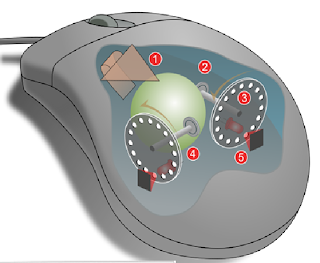
The photo below shows a ball mouse opened up with its components numbered:
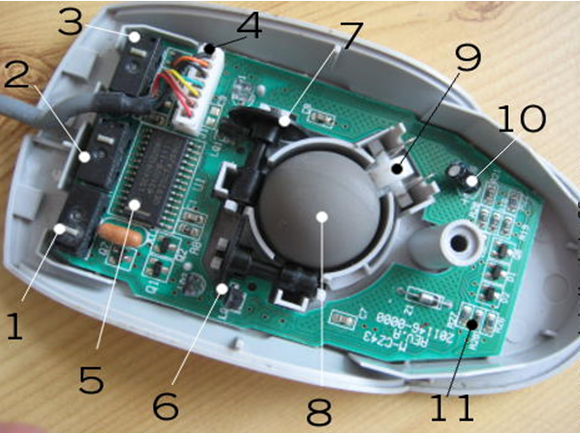
Mapping those numbers onto a modern mouse:
| Number | Component | Modern Equivalent |
|---|---|---|
| 1–3 | Left, middle, right button switches | Unchanged — switches still sit behind each button |
| 4 | Cable to PS/2 socket | Replaced by USB-C or wireless |
| 5 | Controller IC | Still present, far more integrated now |
| 6–7 | X and Y axis detectors | Replaced entirely by the optical sensor |
| 8 | Rubber ball | Gone |
| 9 | Resistors and capacitors | Still on the circuit board |
Two external views of a ball mouse, top and bottom:
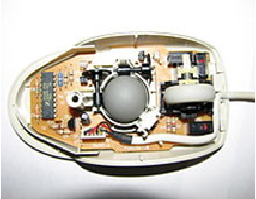
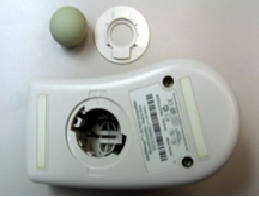
The problem with ball mice is obvious to anyone who used one: the ball collected dust, and every few weeks the internal rollers needed manual cleaning or the cursor started stuttering. That round cover underneath was designed to be opened often.
The Transition to Optical
The photos below show early optical mice — the period when LEDs and sensors began replacing the ball, while the shape and circuit layout still carried over from the older design.
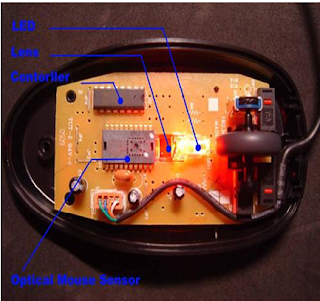
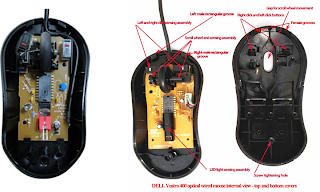
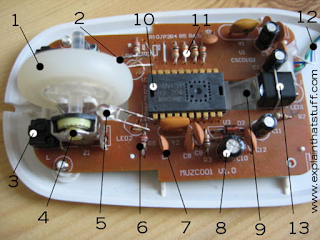
Note the key components: an LED lighting the desk surface, a prism or lens bending the reflection, and a sensor capturing it. The same principle is still in use today — the sensors are simply far faster and more precise.
Optical sensors removed the dust problem entirely: no moving parts, no maintenance. By around 2005, ball mice had effectively vanished from the market.
Optical sensors made the whole mechanism obsolete in barely a decade — a rare case of a peripheral technology disappearing completely rather than merely improving.
Which Part Matters Most When Buying?
Roughly in this order:
- Shape and size — the one factor that appears on no spec sheet, yet decides comfort more than anything else. The most advanced mouse is useless if it does not fit your grip.
- Switches — the component most likely to fail first. Optical switches buy long-term peace of mind.
- Sensor — nearly every mid-range and up sensor is excellent now. This is rarely a real differentiator.
- Weight — a light mouse (under 70 grams) reduces fatigue over long sessions.
- Connection — modern 2.4 GHz wireless already matches cable for latency.
Frequently Asked Questions
Why does my mouse suddenly double click on a single press? Almost always a worn mechanical switch whose metal leaf is bouncing. The fix is replacing the switch, or buying a mouse with optical switches which do not have this failure mode.
Why does the cursor stutter on a glass desk? Optical sensors need surface texture to track, and glass has none. Use a mousepad, or find a mouse with a laser sensor designed for transparent surfaces.
Is a wireless gaming mouse slower than a wired one? It used to be. Not any more. Modern 2.4 GHz wireless mice have latency that is practically indistinguishable from cable. Bluetooth is the one that still lags behind.
How long should a mouse last? Three to five years under normal use. What usually fails first is the switches and the scroll encoder, not the sensor.
My mouse feet are worn thin — do I need a new mouse? No. PTFE feet are sold separately and can be replaced yourself in a few minutes. Far cheaper than a new mouse.
Wrapping Up
A mouse looks simple from the outside, but inside there is a sensor photographing your desk thousands of times per second, switches rated for tens of millions of presses, and a microcontroller turning all of it into cursor movement.
Understanding each part helps in two situations: choosing a new mouse, and diagnosing one that has started misbehaving — because often only a single small, replaceable component has failed.
Want to understand other components? Read what a computer mouse is and what it does for the bigger picture, or hard drive parts and their functions for another component up close.