


The physical components inside a hard drive and what each one does — platters, spindle, actuator, read-write heads, and PCB — plus the CMR versus SMR difference that decides performance, and where HDDs still belong in an SSD era.
A hard drive has five main physical components: the platters that hold the data, the spindle that spins them, the actuator arm that positions the heads, the read-write heads themselves, and the circuit board controlling it all.
The old version of this article mixed two different things — the physical parts of a drive with filesystem concepts like FAT, clusters, and boot sectors. Clusters and FAT are not parts of a hard drive; they are how an operating system organises data on top of one. It also listed “Logic Board”, which is Apple’s term for a motherboard and has nothing to do with hard drives at all.
This rewrite focuses on what is genuinely inside that metal box.
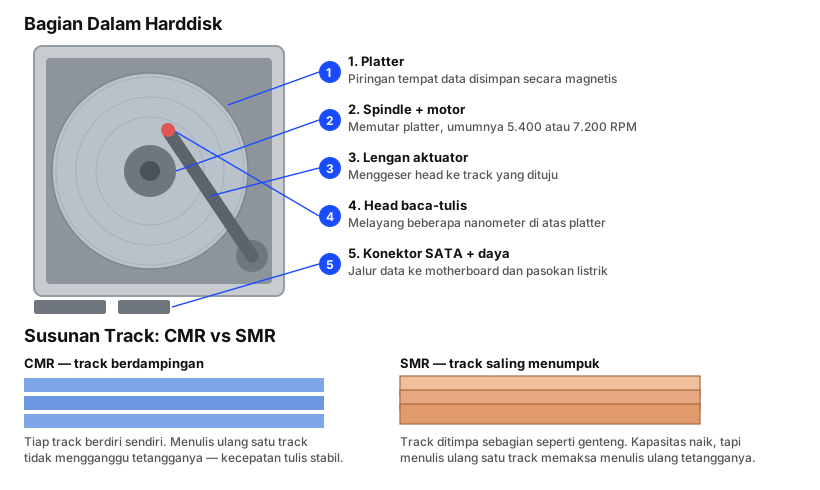
Physical Components
1. Platters
Thin discs of glass or aluminium alloy coated in magnetic material. This is where data physically lives — as the magnetisation direction of tiny particles across the surface.
A drive usually contains several platters stacked on one spindle. Each platter stores data on both sides, so every platter needs two heads.
Capacity per platter determines total capacity. A modern 20 TB drive typically holds nine or ten platters.
2. Spindle and Motor
The shaft holding all the platters, driven by a motor that spins them at a fixed speed.
Two speeds are common:
- 5,400 RPM — quieter, cooler, more power efficient. Common in external drives and high-capacity models.
- 7,200 RPM — faster access, but noisier and warmer. Common in desktop drives.
Enterprise drives reached 10,000 or 15,000 RPM, but that class has effectively been replaced by SSDs.
The spindle motor is one of the most common causes of drive failure — not because the platters degrade, but because the motor stops turning.
3. Actuator Arm
The arm that swings the heads to the target track. It is driven by a voice coil — a coil and magnet arrangement working much like a loudspeaker, allowing very fast and precise movement.
The time this arm needs to reposition is called seek time, typically 8–12 milliseconds. That figure is exactly why hard drives feel so much slower than SSDs: an SSD has no moving parts, so there is no seek time at all.
4. Read-Write Heads
The most delicate component in the drive. The head does not touch the platter — it flies a few nanometres above it, held up by a thin cushion of air generated by the spinning platter.
To picture the scale: if a head were enlarged to the size of an airliner, it would be flying a few millimetres above the ground at hundreds of kilometres per hour.
5. Printed Circuit Board (PCB)
The green board on the underside of the drive. It holds the controller that turns commands from the computer into actuator movement, regulates motor speed, and handles error correction.
The board also carries cache (typically 64–256 MB) holding frequently accessed data temporarily.
6. SATA and Power Connectors
Two connectors along the drive edge: one carrying data to the motherboard, one drawing power from the supply. Older drives used the IDE/PATA interface with a wide ribbon cable, long since abandoned.
7. Breather Hole and Filter
A hard drive is not a vacuum. A small filtered hole equalises internal and external air pressure. The filter keeps dust out, because even the smallest particle can trigger a head crash.
The exception is helium drives. High-capacity modern drives are filled with helium and hermetically sealed. Helium is seven times lighter than air, dramatically reducing drag on the spinning platters — which allows thinner platters, more of them, and lower power draw.
CMR vs SMR: Know This Before You Buy
This is the most important difference between modern hard drives, and it is often not stated clearly on the box.
CMR (Conventional Magnetic Recording) writes tracks side by side without overlap. Any track can be rewritten without disturbing its neighbours.
SMR (Shingled Magnetic Recording) partially overlaps each track like roof shingles. Capacity rises around 20 percent using the same technology, but there is a cost: rewriting one track forces a rewrite of every track overlapping it.
| Aspect | CMR | SMR |
|---|---|---|
| Data density | Standard | ~20% higher |
| Read speed | Good | Good |
| Random write speed | Consistent | Can collapse once cache fills |
| Best for | OS drives, NAS, RAID, write-heavy work | Archives, backups, rarely-changed data |
Unfortunately many manufacturers do not print CMR or SMR on the packaging. The most reliable approach is looking up the specific model number on the manufacturer’s site before buying.
The Older Drive: A Visual Reference
The image below, from the original version of this article, shows a hard drive cutaway with its parts labelled. The terminology is dated and some interfaces are obsolete — note the SCSI connector and jumper pins — but the physical layout is still identical to drives made today.
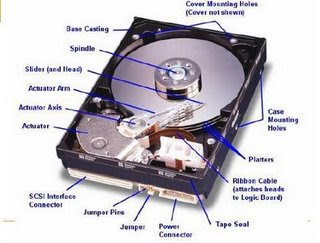
Two parts you will not find on a modern drive:
- Jumper pins — once used to set master/slave on the IDE interface. SATA has no need for them.
- SCSI connector — an older server-class interface, superseded by SAS and NVMe.
Are Hard Drives Still Relevant?
For an operating system and applications: no. SSDs are cheap enough now, and the difference is dramatic — boot times, application launches, and file loading are all several times faster.
For bulk storage: very much so. Hard drives remain far cheaper per terabyte, and that gap widens at large capacities. For photo archives, video collections, scheduled backups, and home NAS boxes, HDDs are still the sensible economic choice.
The common arrangement today is SSD for the system and applications, HDD for data.
| HDD | SSD | |
|---|---|---|
| Price per TB | Much cheaper | More expensive |
| Random read speed | Slow (seek time) | Very fast |
| Shock resistance | Fragile, moving parts | Robust, no moving parts |
| Noise | Audible | Silent |
| Maximum capacity | Very large | Limited and costly at high capacity |
| Powered-off data retention | Years | Can fade without power |
Notably, for long-term archives kept on a shelf, hard drives are actually more dependable. NAND cells in an SSD slowly lose charge when never powered.
Warning Signs a Drive Is Failing
Hard drives rarely die without notice — they usually warn you first.
- Repeated clicking — the actuator arm is failing to find position. Copy your data now.
- Humming or grinding — most likely a spindle motor problem.
- Files suddenly corrupt or missing — possibly spreading bad sectors.
- The computer freezes when accessing one drive — the drive is struggling to read sectors.
- Deteriorating SMART values — check with CrystalDiskInfo on Windows or
smartctl -a /dev/sdaon Linux.
The SMART attribute most worth watching is Reallocated Sector Count. If it rises above zero and keeps climbing, the drive is ageing and its data should be moved soon.
Frequently Asked Questions
What is the difference between a platter and a disk? Nothing — both refer to the disc holding the data. “Platter” is simply the more common technical term.
Why does a 1 TB drive show as roughly 931 GB in Windows? Manufacturers count 1 TB as 1,000,000,000,000 bytes while Windows displays using powers of 1,024. Nothing is missing — the two just count differently.
Can I repair a failed hard drive myself? Not for physical failures. Opening a drive outside a cleanroom introduces dust and destroys it permanently. If the data matters, use a professional recovery service.
Is defragmentation still necessary? For hard drives, yes — Windows already schedules it automatically. For SSDs, no; it only shortens their life with no speed benefit.
How long does a hard drive last? Generally three to five years under normal use. But failure can happen at any time — which is why backups matter far more than choosing a particular brand.
Wrapping Up
A hard drive is one of the more remarkable devices in a computer: discs spinning thousands of times per minute, with heads flying nanometres above them without ever making contact, for years on end.
Those moving parts are exactly why hard drives have limits SSDs do not — and also why they retain a cost advantage for bulk storage that has yet to be matched.
Want to understand other components? Read about how to tell DDR RAM generations apart and computer mouse parts and their functions as well.