


A complete guide to identifying every DDR RAM generation by notch position, speed, voltage, and pin count — plus how to check the RAM already installed without opening your case.
The fastest way to identify a DDR RAM generation is to look at where the notch sits along the bottom row of pins. Every generation places that gap in a different spot, and manufacturers did that on purpose — it makes fitting a module into the wrong slot physically impossible.
This article was originally written in 2019, back when DDR4 was still new. DDR5 is now the standard in new machines, so everything here has been brought up to date — including a fix to how the notch position should actually be measured.
Quick Answer: Comparison Table
If you are in a hurry, this table covers most of it.
| Generation | Introduced | Speed (MT/s) | Voltage | DIMM Pins (Desktop) | SO-DIMM Pins (Laptop) |
|---|---|---|---|---|---|
| DDR1 | 2000 | 200 – 400 | 2.5 V | 184 | 200 |
| DDR2 | 2003 | 400 – 1,066 | 1.8 V | 240 | 200 |
| DDR3 | 2007 | 800 – 2,133 | 1.5 V (DDR3L: 1.35 V) | 240 | 204 |
| DDR4 | 2014 | 1,600 – 3,200 | 1.2 V | 288 | 260 |
| DDR5 | 2020 | 4,800 – 8,800 | 1.1 V | 288 | 262 |
Two details cause most wrong purchases:
- DDR2 and DDR3 both have 240 pins. Counting pins will not distinguish them — only the notch position will.
- DDR4 and DDR5 both have 288 pins. Same problem. DDR5 moves the notch, and its bottom edge curves slightly.
1. Identify by Notch Position (The Most Reliable Method)
The notch is the small gap in the row of contacts along the bottom edge of the module. It works as a mechanical key: the module only seats if the notch lines up with the ridge in the motherboard slot.
What changes between generations is not the size of the gap but where it sits relative to the length of the module.
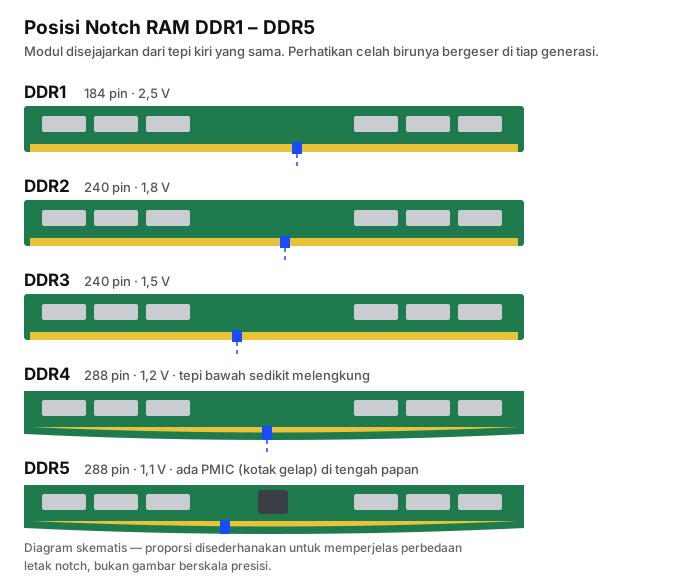
- DDR1 — notch sits slightly right of the module’s midpoint.
- DDR2 — notch shifts slightly left compared to DDR1. The difference is small, which makes these two the hardest pair to tell apart without a reference.
- DDR3 — notch shifts much further left. This is the easiest generation to spot at a glance.
- DDR4 — notch moves back toward the midpoint, and the bottom edge curves slightly instead of running straight.
- DDR5 — notch shifts left again from the DDR4 position, far enough to prevent mis-seating.
In practice: line your module up against the diagram above from its left edge and compare where the notch falls. Far quicker than counting pins one by one.
About Those Centimetre Measurements
The 2019 version of this article gave notch positions in centimetres — “DDR1 past 7 cm, DDR2 exactly 7 cm, DDR3 a bit over 5 cm”. Those numbers came from the diagram below, which includes a ruler beneath the modules.
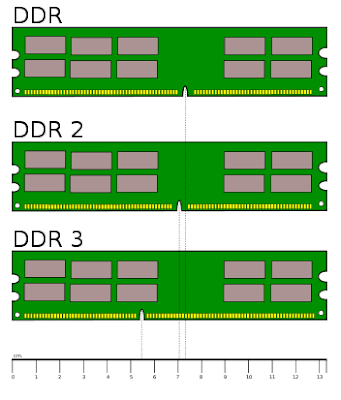
Those figures are not wrong. A DIMM really is about 13.3 cm long, and measuring the notch from the left edge gives roughly those results. But the method has two practical problems:
- You need a ruler. Holding two modules side by side takes a second and needs nothing.
- DDR1 and DDR2 are only millimetres apart. That gap sits well inside normal eyeballing error.
2. Identify by the Label on the Module
Nearly every module carries a sticker stating its speed. There are two naming formats, and both describe the same thing.
The “DDRx-number” Format
The number after the dash is the transfer rate in MT/s (megatransfers per second). DDR4-3200 means 3,200 million transfers per second.
The “PCx-number” Format
The number after the dash is theoretical bandwidth in MB/s. The formula is simple: transfer rate multiplied by 8.
| DDR Naming | PC Naming | Generation |
|---|---|---|
| DDR-400 | PC-3200 | DDR1 |
| DDR2-800 | PC2-6400 | DDR2 |
| DDR3-1600 | PC3-12800 | DDR3 |
| DDR4-3200 | PC4-25600 | DDR4 |
| DDR5-6000 | PC5-48000 | DDR5 |
The digit in the PC prefix (PC2, PC3, PC4, PC5) gives the generation directly. PC3-12800 is DDR3, PC4-25600 is DDR4. This is the fastest method whenever the sticker is still readable.
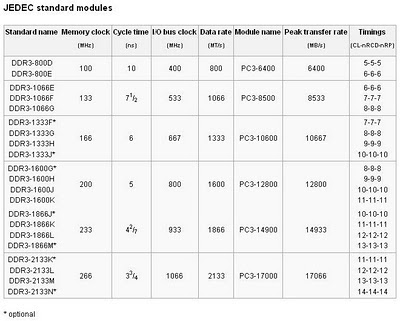
Here is a DDR3 label showing both formats printed on the same module:
3. Identify by Voltage
Voltage drops with every generation, and this is not a trivial detail — it is a large part of why modern laptops last longer on a charge.
- DDR1: 2.5 V — the most power-hungry, understandable for 25-year-old technology.
- DDR2: 1.8 V
- DDR3: 1.5 V, with a low-power DDR3L variant at 1.35 V used widely in laptops.
- DDR4: 1.2 V
- DDR5: 1.1 V
Voltage is usually printed on the module sticker. If you see 1.35 V, it is almost certainly DDR3L — worth knowing, because DDR3L fits standard DDR3 slots but the reverse is not true for boards that only supply 1.35 V.
4. What Is Actually New in DDR5
DDR5 brought architectural changes, not just higher numbers.
Two independent sub-channels. A DDR4 module presents one 64-bit channel. A DDR5 module splits into two independent 32-bit sub-channels. Memory access efficiency improves noticeably under workloads with many small concurrent requests.
Power management moved onto the module. The PMIC (Power Management IC) that used to live on the motherboard now sits on the memory module itself. Voltage regulation gets more precise, but modules also cost more to build.
On-die ECC. DDR5 includes error correction inside the chips. One thing worth being clear about: this is not the same as server ECC memory. On-die ECC only fixes errors inside the chip, not errors that occur while data travels to the processor. Consumer DDR5 is still not a substitute for true ECC memory.
Much higher per-module capacity. DDR5 supports modules up to 128 GB, while consumer DDR4 generally tops out at 32 GB.
5. How to Check Installed RAM Without Opening the Case
If you only want to know what is already fitted, there is no need to take anything apart.
Windows
The quickest route is Task Manager:
- Press
Ctrl+Shift+Esc - Open the Performance tab
- Click Memory
Capacity and speed appear in the top right. Task Manager does not always name the DDR generation explicitly across Windows versions, though.
For fuller detail, run PowerShell:
1Get-CimInstance Win32_PhysicalMemory | Select-Object Manufacturer, PartNumber, Capacity, Speed, SMBIOSMemoryTypeThe SMBIOSMemoryType value gives the generation: 24 for DDR3, 26 for DDR4, 34 for DDR5.
CPU-Z remains the most informative option — open the SPD tab, pick a memory slot, and every detail appears including generation, timings, and manufacturer.
Linux
1sudo dmidecode -t memoryLook for Type: for the generation and Speed: for the transfer rate.
macOS
Click the Apple menu → About This Mac. Note that Macs with Apple Silicon (M1 onward) use unified memory fused to the processor — not removable DDR modules.
6. Can Different DDR Generations Be Swapped?
No, and that is by design.
A DDR4 slot physically rejects a DDR5 module and vice versa. The differing notch position is the mechanical key that prevents it. Even if one could be forced in, the voltages and protocols differ — the result would be damage, not merely a non-working system.
The same applies to motherboards: a given board supports exactly one DDR generation. Boards offering both DDR4 and DDR5 slots do exist, but the slots are separate and only one type may be populated.
7. Which Generation Matters in 2026?
- DDR5 — the standard for any new build. Current Intel platforms and AMD’s AM5 socket support DDR5 only.
- DDR4 — still perfectly capable and considerably cheaper. A sensible choice for upgrading an existing machine or building on a budget.
- DDR3 — only worth buying to keep an older machine running. It makes no sense for a new build.
- DDR2 and DDR1 — out of production. You will only meet these in machines over 15 years old.
Frequently Asked Questions
What is the fastest way to physically distinguish DDR4 from DDR5? Compare notch positions. Both have 288 pins, so counting will not help. If the module has a small extra chip in the middle of the board — that is the PMIC — it is almost certainly DDR5.
Can I install DDR4 in a DDR5 motherboard? No. The slots differ physically and the protocols are incompatible.
Can I mix RAM of different speeds? Technically yes, but every module will run at the speed of the slowest one. For best results use modules with identical specifications, ideally a single kit bought together.
Why does my DDR5 report slower than the speed on the box? Advertised high speeds usually require an XMP (Intel) or EXPO (AMD) profile that must be enabled manually in the BIOS. Without it, RAM runs at the lower JEDEC default.
What do numbers like CL16 or CL30 mean? That is CAS Latency — the number of cycles of delay before data starts flowing. Lower is more responsive, but the figure is only comparable between modules running at the same speed.
Wrapping Up
Of the methods above, two are genuinely practical: comparing notch positions when you have the module in hand, and reading the PC naming on the sticker when the label is intact. The rest serve as confirmation.
If the module is already installed and you would rather not open anything, PowerShell on Windows or dmidecode on Linux answers the question in seconds.
Want to understand other components? Read about computer mouse parts and their functions and hard drive parts and their functions as well.