


What a computer mouse actually is, how it turns hand movement into cursor movement, what it is used for, and why a device invented over 60 years ago still has not been replaced.
A mouse is a pointing device that turns hand movement across a flat surface into cursor movement on screen. It connects to a computer by cable or wirelessly, translating your two-dimensional hand motion into coordinates the operating system understands.
This article has been updated from its 2019 version — the list of functions was reorganised because the original repeated itself in places, and sections on how a mouse actually works and the other pointing devices now in common use have been added.
Why Is It Called a “Mouse”?
Because the earliest ones genuinely looked like one: a small rounded body with a long cable trailing behind it like a tail.
The first prototype was built by Douglas Engelbart at Stanford Research Institute in 1964 — a wooden box with two perpendicular metal wheels underneath. It was shown publicly in 1968, in a presentation now remembered as The Mother of All Demos.
The first commercial computer sold with a mouse included was the Xerox Star, launched in 1981. But mice only became widespread after the Apple Macintosh arrived in 1984 at a far more accessible price.
How a Mouse Works: From Hand to Cursor
The process repeats thousands of times per second, in four steps.
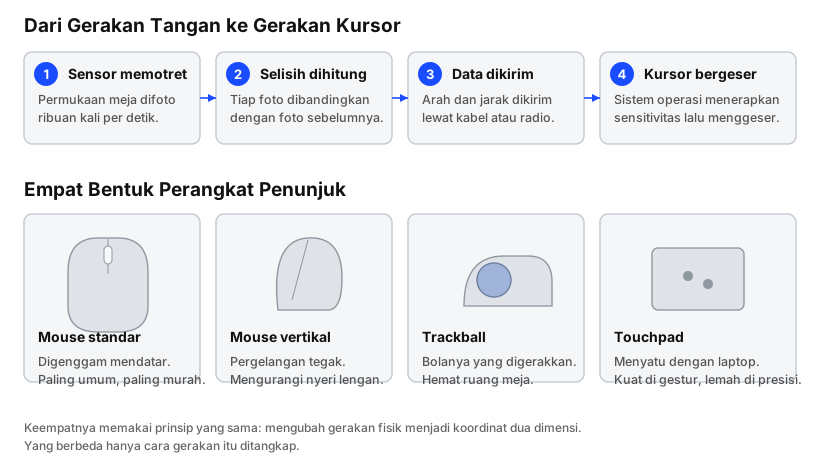
- The sensor photographs the desk surface. A tiny camera underneath the mouse captures images of the surface thousands of times per second.
- Differences between frames are calculated. Each image is compared with the previous one to work out which direction the mouse moved and how far.
- Data is sent to the computer. The result is a displacement figure on the X and Y axes, transmitted over cable or radio.
- The cursor moves. The operating system applies your sensitivity setting, then shifts the cursor accordingly.
Here is the interesting part: a mouse has no idea where the cursor is. It only reports “moved this far right, this far down”. Cursor position is entirely the operating system’s business. That is why lifting a mouse and setting it down somewhere else does not move the cursor.
If you want to know the physical components inside, read computer mouse parts and their functions .
What a Mouse Is Used For
The functions group into three categories, which is more useful than one long list.
1. Pointing and Selecting
- Moving the cursor to any point on screen
- Left click to select an object, button, or link
- Double click to open a file or application
- Click, hold, and drag to move objects
- Click and sweep to highlight text or select multiple files at once
2. Opening Additional Commands
- Right click brings up the context menu — commands relevant to whatever is under the pointer
- Side buttons typically go forward and back in a browser
- Middle click (pressing the scroll wheel) opens links in a new tab, or activates auto-scroll
3. Scrolling and Zooming
- Rotating the scroll wheel to move up and down a page
- Ctrl + scroll wheel to zoom in and out — works in browsers, image editors, and spreadsheets alike
- Tilting the wheel left and right on some mice, for horizontal scrolling
Shift and click to select a continuous range of files, and hold Ctrl and click to pick several separate ones. These two shortcuts save far more time than any macro button.Four Kinds of Pointing Device
The standard mouse is not the only option. All four below work on the same principle — converting physical motion into two-dimensional coordinates — and differ only in how that motion is captured.
| Form | How It Works | Strengths | Weaknesses |
|---|---|---|---|
| Standard mouse | Slid across a desk surface | Most common, cheap, good precision | Needs desk space, wrist faces downward |
| Vertical mouse | Slid too, but hand upright as if shaking hands | Reduces strain on the forearm | Takes adjustment, usually costs more |
| Trackball | The ball rotates, the device stays put | Space-saving, hand never travels | Less precise for fine work |
| Touchpad | Finger slid across a touch surface | Built into laptops, rich gestures | Lowest precision, tiring over long sessions |
A vertical mouse is worth considering if you regularly feel pain in your wrist or forearm after hours of work. The upright hand position reduces the twist between the forearm bones.
A trackball makes sense on a cramped desk, or for anyone whose shoulder and arm tire quickly — because the arm barely moves at all.
Is the Mouse Still Relevant?
The old version of this article said mice had “largely been replaced by touchpads”. More than five years on, the opposite turned out to be true: the mouse is still here, and the market has grown.
The reason is straightforward. Touchpads excel at gestures — two-finger scrolling, switching workspaces, pinch to zoom. But for work demanding sustained precision, nothing has matched the mouse:
- Photo and video editing
- Drawing and design
- Gaming
- Working with large spreadsheets
- CAD and engineering work
What actually happened was not replacement but division of labour: touchpad for mobility, mouse for serious work at a desk. Plenty of laptop users carry both.
Choosing a Mouse: What Genuinely Matters
A sensible order of priorities:
- Shape and size — it has to suit your grip. This decides comfort more than anything else, and appears on no spec sheet.
- Weight — under 70 grams feels noticeably lighter across long sessions.
- Connection type — modern 2.4 GHz wireless already matches cable for responsiveness.
- Number of buttons — two side buttons is enough for most people.
Frequently Asked Questions
What is the difference between an optical and a laser mouse? Both photograph the surface; the light source differs. Optical uses an infrared LED, laser uses a laser diode. Laser works on more surfaces, but nearly every high-end mouse uses optical because it tracks more consistently.
Why does the cursor stutter on a glass desk? The sensor needs surface texture to track, and glass has none. Use a mousepad, or a mouse with a laser sensor.
Is a wireless mouse slower than a wired one? It used to be. Not any more. Modern 2.4 GHz mice have no perceptible delay. Bluetooth is the one still lagging.
How long should a mouse last? Three to five years under normal use. The button switches and scroll encoder usually fail first.
Can one mouse be used with several computers? Yes, if it supports multiple devices — usually via a switch underneath. Some can even move the cursor seamlessly between computers using the manufacturer’s software.
Wrapping Up
The mouse is one of the most durable designs in computing history. The basic idea dates to 1964 and its working principle has not changed: physical motion converted into two-dimensional coordinates.
Only the method of capturing that motion evolved — from metal wheels, to a rubber ball, to optical sensors. The shape and the purpose have stayed the same for more than six decades.
Want to go deeper? Read computer mouse parts and their functions for the components inside.